You set up the dash cam, see the recording icon, and assume you are covered. Then a few days later the screen says “SD card error,” “card slow,” “format card,” or the app says there is no card at all.
The safest first move is not buying a new camera. It is checking whether your dash cam can actually save and play back a recent clip.
Quick Answer
If your dash cam shows SD card error messages, follow this order:
-
Save any important footage first. If there was an incident, export the clip through the app or copy the card before formatting.
-
Play back a recent clip. Do not trust only the red recording light. Play a clip from today. If you have a front/rear camera, check both channels.
-
Format the card inside the dash cam. Use the camera’s format menu when possible. Computer formatting can use the wrong file system or leave files the camera does not like.
-
Check the card type. For 2K, 4K, dual-channel, or parking mode use, look for a compatible high-endurance or industrial-grade microSD card that meets your camera’s speed and capacity requirements.
-
Replace the card if errors return quickly. If the warning comes back within days after a proper in-camera format, or if clips are missing, corrupted, or unplayable, treat the card as suspect.
-
Only then check the rest of the setup. Firmware, app connection, locked files, G-sensor sensitivity, hardwire wiring, and power behavior can also cause storage problems.
If you want a deeper checklist, GearNudge also has a related guide to dash cam sd card error troubleshooting.
Why Dash Cams Are Hard on SD Cards
A dash cam does not use a microSD card like a phone does.
Your phone may write photos and videos now and then. A dash cam writes constantly. It records short video files, fills the card, then overwrites the oldest unlocked files in a loop.
That constant writing is why normal phone or tablet cards can fail sooner than expected in a dash cam.
The words on the card matter
The speed markings can be confusing, but the basics are simple:
- Class 10 and U1 both mean a minimum sustained write speed of 10 MB/s.
- U3 and V30 both mean a minimum sustained write speed of 30 MB/s.
- U3/V30 is the safer baseline for many 2K, 4K, dual-channel, high-bitrate, and parking-mode setups.
- V60 and V90 are usually more than a dash cam needs unless your camera maker specifically requires them.
A “Card Slow” or “Slow Card Error” warning usually means the card cannot keep up with the camera’s video bitrate. This is more likely with 4K, dual-channel recording, and high-bitrate modes.
Endurance matters more than bargain capacity
A standard consumer microSD card may work at first. That does not mean it is a good dash cam card.
Dash cams need cards built for repeated writing, overwriting, heat, and long recording sessions. That is why high-endurance and industrial-grade cards exist.
Dashboard heat also matters. A car interior can get very hot, and heat accelerates memory wear. A card marketed for dash cams or surveillance is a better place to start than a general-purpose card.
Capacity still has to match the camera
A bigger card is not automatically better.
Every dash cam has a maximum supported capacity. Some support 512GB. Some do not. If you buy beyond the camera’s limit, the camera may refuse to format the card or may behave strangely.
Cards over 64GB can also create FAT32 vs exFAT formatting confusion on some cameras. That is another reason to format inside the dash cam whenever possible.
Clip retrieval is the real goal
The point is not just recording. The point is retrieving the clip when you need it.
Front footage usually shows what happened ahead. Rear footage helps with rear-end impacts, tailgating, and lane-change context. Parking footage can help after a hit-and-run.
But none of that helps if the file is missing, corrupted, overwritten, or stuck on a failing card.
Also keep expectations realistic. A better SD card helps preserve footage. It does not guarantee readable license plates. Plate readability still depends on speed, angle, glare, distance, resolution, field of view, and night lighting.
Match the Error to the Likely Cause
Use the message as a clue, not a final diagnosis.
| What you see | Likely causes | What to do first |
|---|---|---|
| “Format SD Card” every few weeks | Normal maintenance, file buildup, fragmentation | Save needed clips, then format in the camera |
| “Format SD Card” returns within days | Worn card, incompatible card, corruption, wrong file system | Replace with a known-compatible endurance card |
| “Card Slow” or beeping | Card write speed cannot keep up | Use U3/V30 or the speed class your manual requires |
| “Memory Card Error” | Corruption, fake card, worn card, wrong format, incompatibility | Format in-camera, then replace if it returns |
| “No SD Card” | Bad seating, bad card, app false alarm | Check camera playback before trusting the app |
| “Card Full” | Locked event files, parking-mode files, loop recording off, failing card | Clear protected files and check loop recording |
| Missing or corrupted clips | Silent write failure or card wear | Replace the card urgently |
| Frozen boot screen or reboot loop | Failing/incompatible card, firmware, power issue | Try a known-good compatible card before replacing the camera |
If the app says “No SD Card,” check the camera itself
Some dash cam apps can report “No SD Card” even when the camera is recording normally. Before buying a new card, check playback on the camera screen if your model has one, or reconnect/reset the app and update firmware.
If the camera itself cannot record or play files, treat it as a real storage problem.
Fix the SD Card Problem Before Replacing the Dash Cam
This sequence avoids two common mistakes: erasing useful footage and replacing a camera when the card was the weak point.
1. Protect any important clips
If there was an incident, do this first:
- Stop recording if needed.
- Export the clip through the app if it still works.
- Remove the card carefully if you need to copy files on a computer.
- Do not format until the file is safe somewhere else.
If the clip will not play, try copying the full folder structure before doing anything else.
2. Verify a recent recording
Play back a clip from today.
If your camera has front and rear coverage, check both. A rear camera is only useful for rear-end or lane-change context if the rear channel is actually being written to storage.
A recording icon is not proof that the files are usable.
3. Format inside the dash cam
Use the dash cam’s own menu.
This helps the camera create the file system and folders it expects. It also clears locked files that can interfere with loop recording.
4. Check the card against the camera’s needs
Look up your exact model and confirm:
- Maximum supported capacity
- Required speed class
- Recommended card list
- FAT32 or exFAT requirement
- Whether 2K, 4K, dual-channel, or parking mode raises the storage requirement
For many modern dash cams, U3/V30 is the practical baseline. Do not assume a Class 10/U1 card is enough for a high-bitrate 4K or dual-channel camera.
5. Replace the card when the symptoms point to wear
Replace the card if:
- Formatting fails
- The card becomes read-only
- Errors return within days
- The camera says “Card Slow”
- Clips are missing or corrupted
- The card is a standard consumer card
- The card is older than roughly 2–3 years in continuous dash cam use
A worn card can appear to format correctly and then fail again almost immediately.
6. If a new compatible card still fails, check setup causes
Now look beyond the card:
- Update dash cam firmware.
- Reset or reconnect the app.
- Check power stability.
- Check the hardwire kit.
- Clear locked/protected files.
- Lower G-sensor sensitivity if it locks too many clips.
- Confirm parking mode is configured correctly.
For more setup-specific checks, see GearNudge’s guide to dash cam parking mode setup.
What Should You Replace First?
Replace or test the SD card before replacing the whole camera, unless the camera has obvious physical damage.
A compatible endurance card is usually the cheaper and more logical first part to rule out.
The card should match your camera’s:
- Resolution
- Number of channels
- Parking mode use
- Speed class requirement
- Maximum capacity
- Manufacturer compatibility notes
Buy from the manufacturer, brand storefront, or a trusted sold-and-shipped retailer when possible. Counterfeit cards can have fake capacity, wrong speed markings, or unreliable memory.
Watch a counterfeit SD card example helps explain why a card can look legitimate but cause dash cam freezing or write failuresSafer SD Card Options to Consider
No memory card is guaranteed to work with every dash cam. Check your exact camera model first.
These are better framed as card types to consider for specific needs, not universal fixes.
Samsung PRO Endurance microSD
Best fit: drivers who want a dash-cam-marketed endurance card for continuous recording and high-heat use.
Avoid if: your camera does not support the capacity you plan to buy, or if your camera maker recommends a different tested card list.
Setup or fit risk: confirm the current speed marking, capacity, and your dash cam’s maximum supported size before ordering.
Evidence note: Samsung markets PRO Endurance for dash cam use and lists long continuous-recording ratings on high-capacity versions.
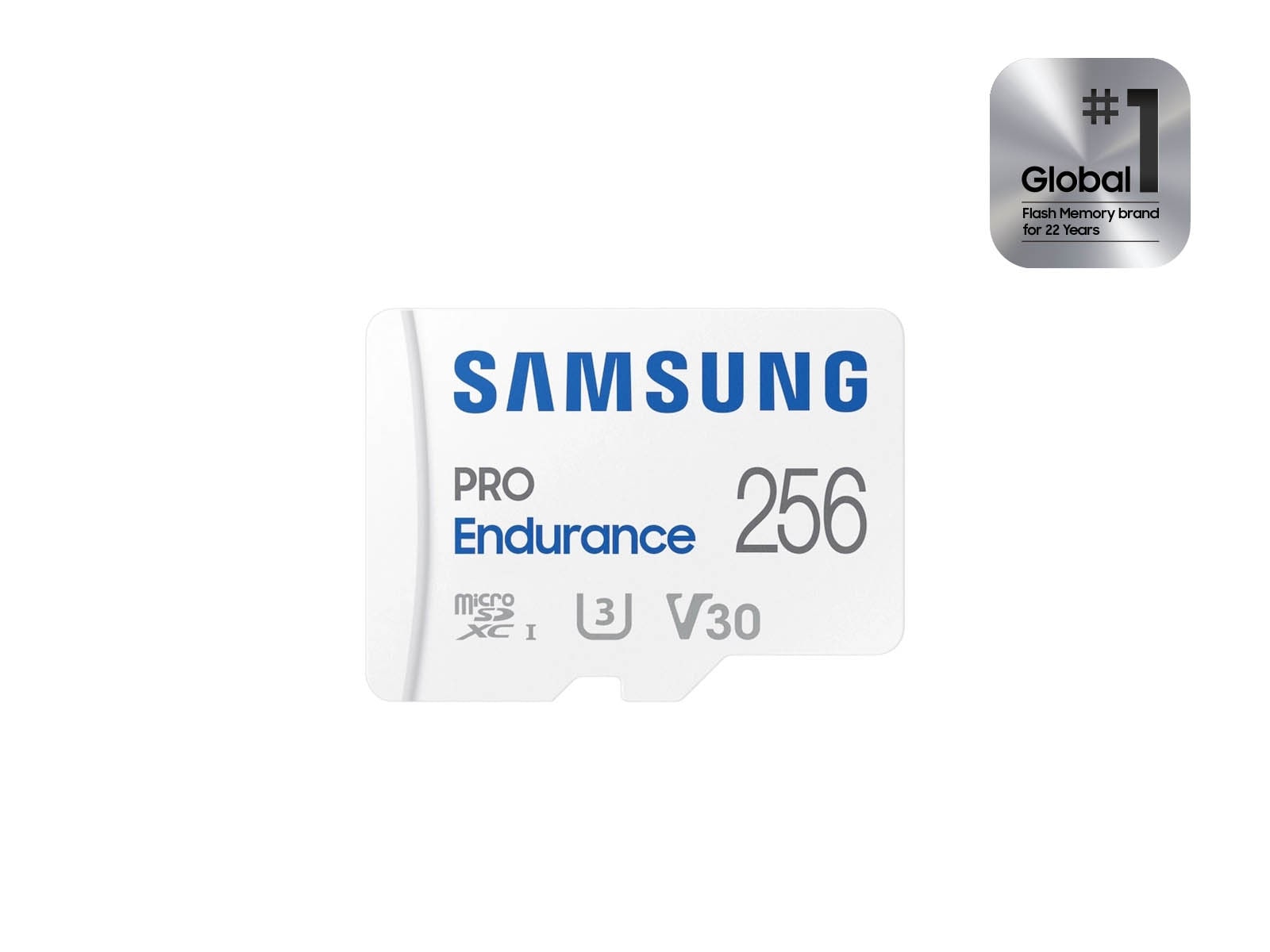
PRO Endurance Adapter Microsdxc 256gb SKU MB Mj256ka
gearnudge.com
- Best for
- fits drivers looking for a dash-cam-marketed endurance microSD option after checking camera compatibility
- Avoid if
- You need confirmed live price or guaranteed fit from this page.
- Evidence
- Listing and source evidence
SanDisk Max Endurance microSD
Best fit: VIOFO owners who want a non-OEM card that appears in VIOFO compatibility research.
Avoid if: you are assuming that VIOFO compatibility makes it compatible with every dash cam brand or every capacity.
Setup or fit risk: check your exact VIOFO model and supported capacity. Do not generalize from one compatibility list to all cameras.
Evidence note: the key caution here is narrow. SanDisk Max Endurance is noted as the only non-OEM card VIOFO officially verifies in the compatibility information reviewed for this guide, but you should still confirm your exact model.
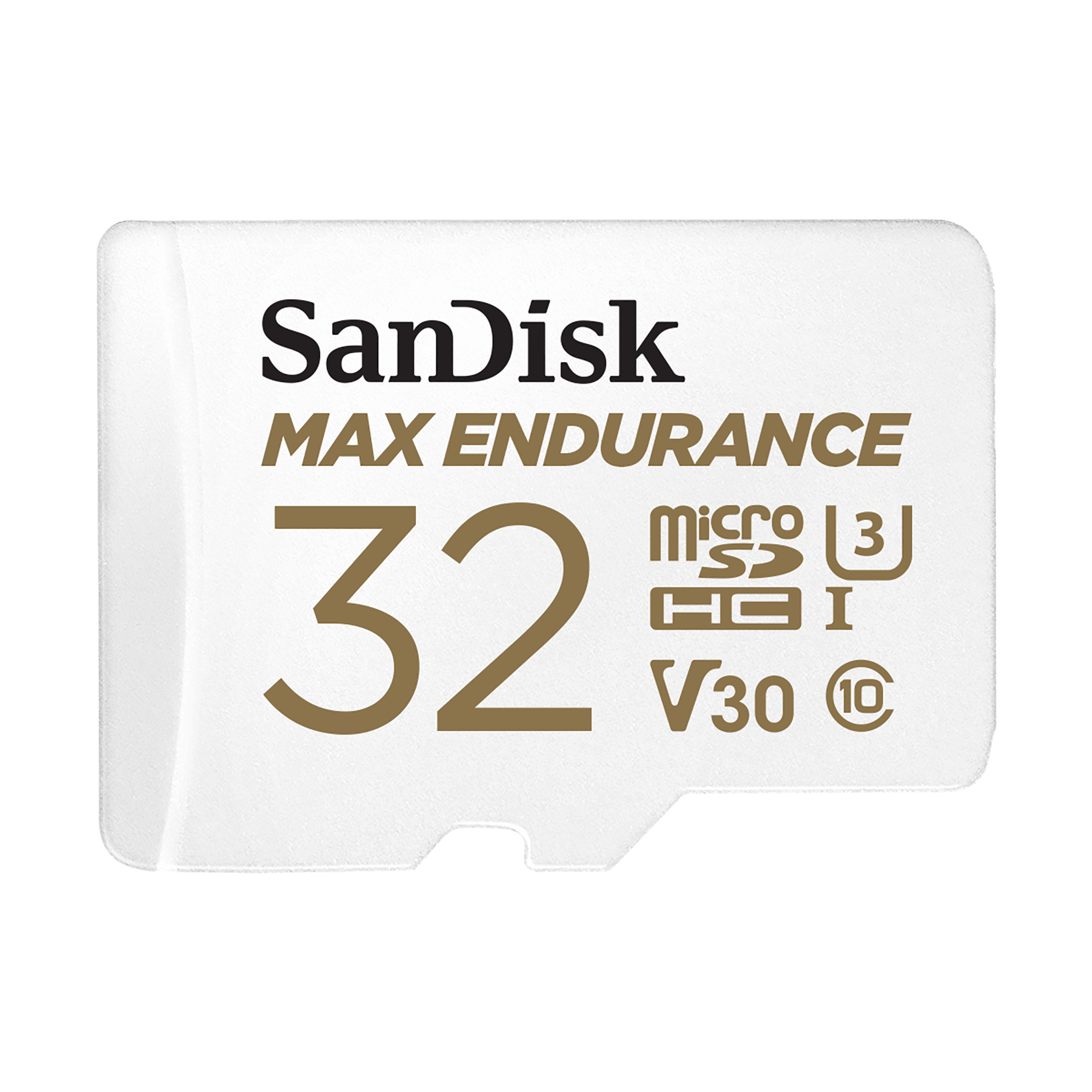
Sandisk MAX Endurance UHS I Microsd.html
gearnudge.com
- Best for
- cautious fit for VIOFO owners who want a checked endurance card option, while still verifying exact model and capacity
- Avoid if
- You need confirmed live price or guaranteed fit from this page.
- Evidence
- Listing and source evidence
SanDisk High Endurance microSD
Best fit: budget-minded drivers who still want an endurance line rather than a standard phone/tablet card.
Avoid if: your dash cam requires a higher speed or capacity combination than the specific card version provides.
Setup or fit risk: check U3/V30 needs for 2K, 4K, dual-channel, and parking-mode setups.
Evidence note: SanDisk High Endurance is commonly discussed as a budget endurance option, but that does not make it the right card for every high-bitrate camera.

Sandisk High Endurance UHS I Microsd
gearnudge.com
- Best for
- fits readers who want a budget endurance-card direction after checking speed class, capacity, and dash cam requirements
- Avoid if
- You need confirmed live price or guaranteed fit from this page.
- Evidence
- Listing and source evidence
Nextbase 128GB U3 Industrial Grade microSD Card
Best fit: Nextbase owners or readers who prefer an OEM-style industrial U3 card for supported cameras.
Avoid if: your camera does not support 128GB, or if the maker recommends a different card.
Setup or fit risk: confirm exact model support. Do not assume an industrial-grade card bypasses the camera’s capacity and formatting rules.
Evidence note: Nextbase describes this card as industrial grade and lists a higher write-speed claim than some endurance lines, but that is manufacturer evidence and should be treated as model-specific.
128gb U3 Industrial Grade Microsd Card
gearnudge.com
- Best for
- fits Nextbase-style or OEM-card buyers who want an industrial U3 card after confirming model support
- Avoid if
- You need confirmed live price or guaranteed fit from this page.
- Evidence
- Listing and source evidence
Buy in This Order if Errors Keep Coming Back
Use this order before spending money on a new dash cam.
-
Try in-camera formatting and playback verification. This is reasonable if the card is otherwise compatible and the warning looks like routine maintenance.
-
Replace the SD card. Choose a compatible high-endurance or industrial-grade card if errors return quickly, clips are missing, or formatting fails.
-
Add capacity only if the camera supports it. Bigger is useful only inside the camera’s supported range.
-
Prioritize endurance and U3/V30 for heavy recording. This matters most for 2K, 4K, dual-channel, parking mode, and high-bitrate cameras.
-
Treat external SSD support as model-specific. Some newer cameras support external SSD storage, but that does not make SSDs a universal fix.
-
Replace or upgrade the dash cam last. Do this after a known-good card, firmware/app checks, and wiring/power checks do not solve the problem.
Camera examples where storage load matters
These dash cams are examples of setups that can increase storage demand. They are not ranked here for SD card reliability because that would require direct comparative testing.
- REDTIGER F7NA 4K Dual Dash Cam check current price — a 4K front/1080p rear example. Check speed class and supported capacity because dual-channel recording writes more data.
- REDTIGER 4K Dash Cam with WiFi & APP Control check current price — a compact 4K example. Loop recording and parking mode still need a reliable card.
- REDTIGER 4K/2.5K front and rear dash cam check current price — a front/rear setup. Verify that both channels save and play back, not just the front camera.
- VIOFO VS1 Mini 2K HDR check current price — a small 2K setup with an included 32GB card. Heavier use may call for a compatible upgrade.
- VIOFO MT1 Dual Channel 1080P Motorcycle Dash Cam check current price — a motorcycle dual-channel setup. If errors are intermittent, check vibration, weather exposure, power, and card seating.
- VIOFO A329S 2CH 4K 60FPS+2K HDR check current price — a high-bitrate dual-channel example with SSD support listed. Storage choice still needs to follow the model’s rules.
- VIOFO A329S 2CH IR Front & Interior check current price — a front/interior setup. Playback-test both views if cabin footage matters.
- VIOFO A329T 2CH 4K 60FPS+2K Telephoto check current price — a specialized telephoto setup. Do not assume storage support or plate readability without checking real conditions and model requirements.
What to Avoid Before You Buy
Avoid these common mistakes.
Avoid standard consumer microSD cards
Cards meant for phones, tablets, or occasional cameras are not the best fit for constant loop recording.
Manufacturer guidance commonly points dash cam users toward endurance or industrial-grade cards instead. Standard consumer lines such as SanDisk Ultra and Samsung EVO/EVO Plus are often warned against for dash cam loop recording.
Be careful with U1 cards in 4K setups
Class 10/U1 can be enough for some basic 1080p cameras. It may be weak for 2K, 4K, dual-channel, or high-bitrate recording.
Kingston High Endurance was flagged in the research because it uses U1 speed class only, which may limit 4K dash cam compatibility. That does not mean every U1 card fails in every camera. It means you should not present U1 as a broad 4K fix.
Do not assume a larger card will work
A 512GB card is useful only if the camera supports 512GB. Check the manual first.
Do not assume “No SD Card” always means no card
If only the app says it, test the camera itself. Update firmware or reset the app connection before replacing parts.
Do not blame only the card if the setup is wrong
A hardwire mistake, unstable power, excessive locked files, or a parking-mode setting can create repeated corruption or missing footage.
Do not expect storage to solve plate readability
A reliable card helps preserve the footage. It does not change the laws of motion, glare, distance, low light, or wide-angle distortion.
When the Camera Setup Causes Card Problems
Sometimes the card is not the only issue.
Format regularly
Many dash cam makers recommend formatting the card every 2–4 weeks. Follow your camera maker’s guidance.
A practical habit:
- Format in the camera once a month.
- Save any needed clips first.
- Check playback afterward.
If errors return within days, stop treating it as routine maintenance. Replace the card or investigate compatibility.
Check playback once a week
Once a week, play back a clip from a recent drive.
If you use front/rear recording, check both. If you use parking mode, check a parking clip too.
Watch parking mode and locked files
Parking mode can write more often and create protected clips.
If your G-sensor is too sensitive, normal bumps may lock too many files. Loop recording may not overwrite those protected files, and the card can fill up.
Try:
- Loop recording on
- 3–5 minute loop segments
- G-sensor on low or medium
- Periodic clearing of locked files
- A high-endurance card if parking mode is used often
If parking mode itself is not recording correctly, see GearNudge’s guide to parking mode not working.
Check hardwire wiring
Hardwire kits often use separate constant power and switched accessory power.
If those wires are tied together or connected incorrectly, the camera may not shut down properly. Poor shutdown behavior can corrupt the card.
If parking mode is also causing battery concerns, see GearNudge’s guide to dash cam battery drain.
Standard, mirror-style, and motorcycle setups have different checks
For a standard windshield dash cam, check:
- Card seating
- Card slot
- Power cable
- Format menu
- Front/rear playback
For a mirror-style setup, check:
- Rear camera cable
- Card access
- Front/rear clip retrieval
- Whether both views are being saved
For a motorcycle setup, check:
- Vibration
- Weather exposure
- Power stability
- Card seating
- Intermittent disconnects
A motorcycle dual-channel system such as the VIOFO MT1 has different physical stress than a cabin-mounted car dash cam, so intermittent errors deserve a closer install check.
Common SD Card Error Questions
Common SD card error questions
Can I use a phone microSD card in a dash cam?
Usually, you should avoid standard consumer cards. Dash cams write constantly, so use a compatible high-endurance or industrial-grade card that meets your camera’s speed and capacity requirements.
What does U3 or V30 mean?
Both point to a 30 MB/s minimum sustained write speed. That is a practical baseline for many 2K, 4K, dual-channel, and parking-mode setups.
Is Class 10 the same as U1?
They both indicate 10 MB/s minimum sustained write speed. That can work for some basic 1080p cameras, but it may be weak for higher-bitrate setups.
How often should I format the card?
Many dash cam makers recommend in-camera formatting every 2–4 weeks. Save needed footage first and follow your camera’s manual.
How often should I replace the card?
For continuous dash cam use, treat 2–3 years as a practical maintenance window. Replace sooner if you see errors, slow-card warnings, missing clips, corrupted files, or formatting failures.
Why does the app say No SD Card when the camera records?
Some apps can show false card warnings. Confirm playback on the camera, then update firmware or reset the app connection before assuming the card is missing.
Do SD card errors mean the dash cam is broken?
Not always. Card wear, wrong card specs, formatting problems, firmware, app issues, power, or wiring can all cause storage errors.
Will a better SD card make license plates readable?
It can help preserve the clip, but plate readability still depends on speed, angle, distance, glare, field of view, resolution, and night lighting.
The Safe Next Move
If footage matters, verify playback now.
If a card error appears, save important clips before formatting. If in-camera formatting fixes the issue for weeks, keep the formatting habit. If errors return quickly, clips go missing, or formatting fails, replace the card with a compatible endurance or industrial-grade option.
If a known-good card still fails, check firmware, app connection, locked files, G-sensor settings, hardwire wiring, power, and camera support.
The goal is simple: reliable front footage, rear footage when you need it, realistic expectations at night, and a clip retrieval habit that keeps useful proof from disappearing.
All Products Covered
Use this as the complete product list for comparison.
Bottom Line
Use the shortlist above to choose the setup that fits your main problem, then verify fit, power, parking mode, and clip retrieval before relying on it for real evidence.
References
Sources used while preparing this guide.
Videos
Official sources
- Garmin Dash Cam SD Card Error Messagessupport.garmin.com
- Nextbase — Which SD Card Do I Use In My Dash Cam?nextbase.co.uk
- Samsung EVO Select microSD Listing Pagesamsung.com
- SanDisk Extreme microSD Official Product Pagesandisk.com
- forum.blackvue.com (official)forum.blackvue.com
- kingston.com.cn (official)kingston.com.cn
- lexar.com (official)lexar.com
- nextbase.com (official)nextbase.com
- samsung.com (official)samsung.com
- sandisk.com (official)sandisk.com
- sandisk.com (official)sandisk.com
- viofo.cn (official)viofo.cn
- viofo.com (official)viofo.com
User reports
- Corrupted SD card? (VIOFO A129 Plus Duo)dashcamtalk.com
- Formatting SD cards in dashcams (Nextbase group)facebook.com
- Need help with SD cards — DashCamTalkdashcamtalk.com
- Vantrue iOS App Shows 'No SD Card' When Card Worksfacebook.com
- dashcamtalk.com (forum)dashcamtalk.com