Quick answer
Loop recording is a never-ending process. Once your storage reaches the end, the camera starts writing at the beginning again, erasing the oldest material to make room for the new.
To manage this, dash cams split continuous recording into short segments, usually 1, 2, or 3 minutes long. When the card reaches capacity, the camera simply overwrites the oldest unprotected clip.
However, there is a safety net called a G-sensor. This sensor detects sudden forces, like a collision or hard braking, and automatically locks the current clip. These locked clips are moved to a protected event folder where the loop recording is not allowed to touch them.
Who this is for
This information is for drivers who want continuous recording without having to manually manage files every single day. You need a system that protects your most vital moments automatically.
If you are someone who never reviews your footage or relies entirely on a cloud backup service, you might not need to worry about these mechanics. But if you want a reliable witness on your dashboard, understanding how the loop and the lock work together is essential. This is especially important if you are choosing a high-resolution camera, as 4K files fill up storage much faster.
How loop recording actually works
Think of loop recording as a circular buffer. Imagine a revolving door that only has a certain number of slots. As new people enter one side, the people who entered a long time ago are pushed out the other side.
Your dash cam does the same with data using a “First-In-First-Out” (FIFO) behavior. It records in short cycles—typically 1, 3, or 5 minutes—to keep the files manageable. When the card is full, the camera looks for the oldest clip that isn’t protected and deletes it to make room for the next one.
This cycle never stops. It ensures you always have the most recent driving history available without ever having to pull the SD card out to delete old files manually.
Why locked files break the loop
The very feature meant to save you—the G-sensor—is often what causes the most headaches. The G-sensor (an impact detector) is designed to sense a jolt and immediately “lock” that video.
These locked clips are placed in a separate, protected folder. Because they are protected, the loop recording process is forbidden from overwriting them.
This is why your SD card might suddenly show as “full” even though loop recording is turned on. The locked files are piling up, and the camera has run out of “unprotected” space to write new footage.
Common culprits for this include:
- Over-sensitive sensors: A bumpy road or a deep pothole might trick the camera into thinking you crashed, locking a clip you didn’t need.
- Parking mode: Some cameras use automatic parking event detection, which locks every single clip of movement detected while you are away. This can flood your card with protected files very quickly.
Sometimes protected files can be overwritten even when there is still plenty of unprotected space left, which can lead to the sudden loss of important material.
How to choose: settings that keep the loop alive
To keep your dash cam running smoothly, you need to balance protection with storage space. You don’t want to lose a crash, but you also don’t want a camera that stops recording because it’s “too careful.”
Follow these setup tips to keep the loop healthy:
- Set your clip length: Many manuals recommend setting the recording cycle to 3 minutes for the best file management.
- Adjust G-sensor sensitivity: Start with a “Medium” setting as your baseline. If you find that your card is constantly filling up with “event” files from tiny bumps, lower the sensitivity to “Low.” A lower setting will still catch a real collision but will ignore minor road vibrations.
- Use parking mode selectively: If you use parking mode, be aware that it can be a heavy user of storage.
Product options with reliable loop/lock behavior
When looking for a camera, consider how much storage you will actually need to maintain a useful “window” of history.
If you are using a high-end 4K camera, you should plan on using a card with at least 128GB of space. This gives the loop more breathing room before it has to start overwriting files.
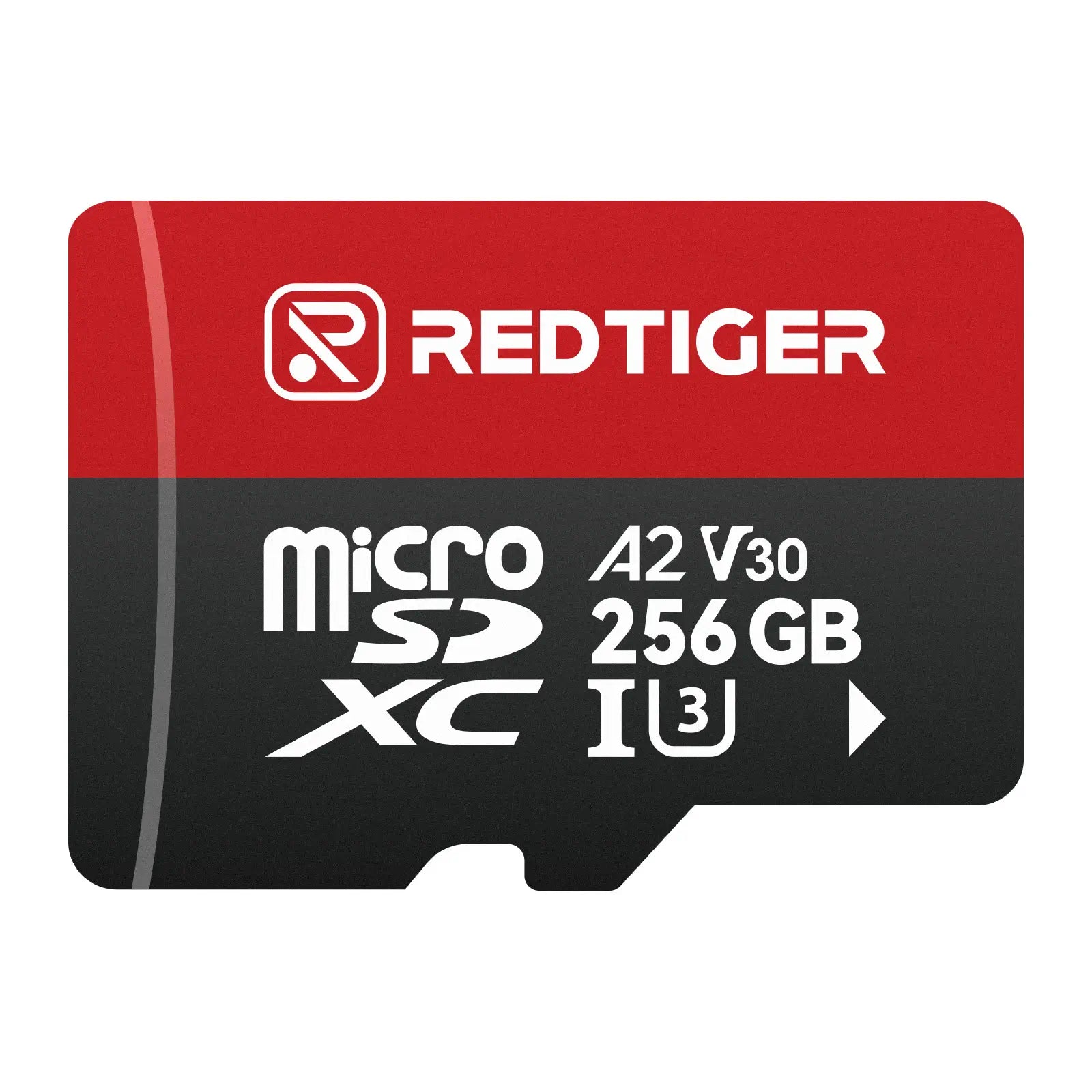
REDTIGER High Speed 256GB Micro SD Card with Adapter, microSDXC UHS-I Class 10, U3, V30 A1, Support for Dash Cam and 4K Video Recording
gearnudge.com
- Best for
- A high-endurance card is vital for the constant writing required by loop recording.
- Avoid if
- You need confirmed live price or guaranteed fit from this page.
- Evidence
- Listing and source evidence
Compatibility checks: memory cards & formatting
The “brain” of your loop recording is the memory card. If the card isn’t set up correctly, the camera might struggle to overwrite old files.
Always use a high-endurance memory card. Look for specific ratings like Class 10, U3, or V30. These are designed to handle the constant “write-erase-write” cycle of a dash cam without wearing out quickly.
Most importantly, always format the card inside the dash cam itself. This ensures the camera creates the exact file system (like FAT32 for cards 128GB or smaller) and the specific folder structure it needs to separate “Normal” clips from “Event” or “Parking” clips.
Setup & maintenance routine
To keep your camera reliable, follow this simple routine:
When you first get your camera:
- Insert a high-endurance card.
- Format the card using the camera’s internal menu.
- Turn on loop recording and set your preferred clip length (3 minutes is a great starting point).
- Set the G-sensor to Medium.
On a regular schedule (monthly):
- Format the card in-camera to clear out any file system errors and reduce card wear.
- Check your “locked” or “event” folder. If it is huge, lower your G-sensor sensitivity.
Avoid-if guidance
You might want to reconsider certain setups if you encounter these issues:
- Avoid high-vibration mounts if you cannot lower your G-sensor sensitivity. The constant shaking will trigger constant “locks.”
- Avoid unattended parking mode with aggressive event detection if you don’t want to constantly clear your SD card.
- Avoid cameras that lack app alerts. Many users realize too late that their footage has been overwritten because the camera didn’t warn them that the locked storage was full.
FAQ
Do I have to manually unlock files to delete them?
Yes. Because they are protected, locked files are usually immune to the loop overwrite. You often have to go into the menu to manually unlock them before the camera will let you delete them.
Can I get footage back if the loop overwrites it?
No. Once a clip is overwritten by the loop, it is gone forever.
Why did my protected video vanish?
Some owners report that "protected" videos can vanish overnight. Some technical experts suggest that once a card's capacity drops below a certain level (like 30%), the camera may eventually overwrite those protected files to keep the system running.
How can I fix a "Card Full" error?
Clear the locked/event folder, lower your G-sensor sensitivity, and then format the card inside the camera to restore the loop's ability to overwrite.